

Adobe Illustrator 2021 25.0

Adobe Illustrator is the industry standard vector graphics application
widely used by designers in various fields of digital graphics, illustration and printing, in the development of all types of multimedia resources, such as printed materials, Internet content, interactive media, videos and mobile applications.
Create vector graphics in a program used by professionals. Experience everything from web and mobile graphics to logos, icons, illustrations, packaging designs and billboards.
Enjoy creative freedom with Adobe Illustrator!
System requirements:
• 64-bit version of Microsoft Windows 10 (version 1809 or later); 64-bit version of Microsoft Windows 8.1 or Windows 10
• Microsoft Internet Explorer 11
• Multi-core Intel or AMD Athlon processor with support for 64-bit OS
• 8 GB RAM (16 GB recommended)
• 2 GB of free hard disk space for installation; additional free space is required during installation; SSD recommended
• Screen resolution 1024x768 (1920x1080 recommended)
• To use the Touch workspace, requires a Windows 10 touch-enabled tablet / monitor (Microsoft Surface Pro 3 recommended)
• System with support for OpenGL 4.x
• To use the GPU functions, the computer must have at least 1 GB of video memory (4 GB recommended)


FAQ:
Question: How will the program work on not officially supported operating systems?
Answer: I removed the block on installing the program on Windows 8.1 and Windows 10 minor versions. How the program will work for them, I do not know. Those who actively use the program, please unsubscribe in the release comments. If any bugs are noticed when working on old OS, in the next version of the assembly I will block their support. I would especially like to note that the inclusion of support for old operating systems does not affect the work in officially supported operating systems.
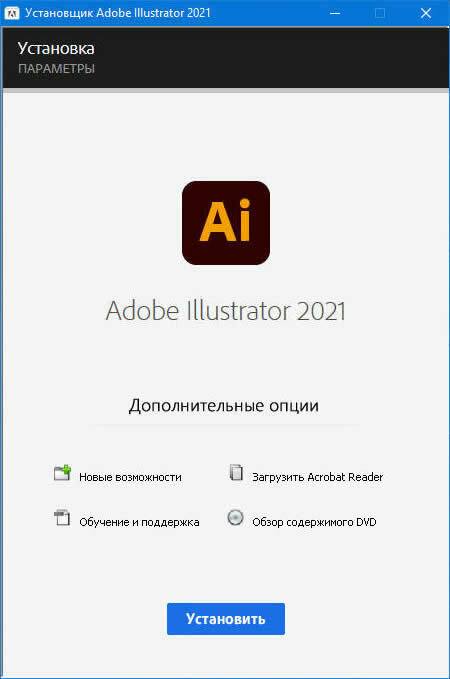
Question: During the installation process, when I click the "Continue" button, nothing happens to me. How to be?
Answer: For the installer to work, you must have Internet Explorer version 11. Install or update this product to bring the system in line with the installer's requirements.
Question: I cannot click the "Continue" button, because the contents of the window do not fit into the window itself, and the button is out of sight. What to do?
Answer: This sometimes happens on a crookedly configured OS. The keyboard has a TAB key. Click it to the desired menu item.
Question: I have a gag at the initial stage of installation, not described above. Can you suggest something?
Answer: Try replacing the Set-up.exe file used in the distribution with the one downloaded from here.
Question: The installation did not complete due to an incomprehensible error. What to do?
Answer: Read the explanation of the error codes. Also, I recommend that you study the installation log. It is located in the C: \ Program Files (x86) \ Common Files \ Adobe \ Installers folder. Perhaps here you can get more detailed information about the problem and how to fix it.
Question: What about disabling spyware?
Answer: The spy module Log Transport Application (LogTransport2.exe) is disabled. The file that initializes it has been renamed to LogTransport2.exe.bak. If you suddenly have a desire to restore its performance, simply remove the .bak extension from it. Anticipating the question of some users why, they say, the same CRLogTransport.exe or AdobeIPCBroker.exe are not blocked, I want to say that some online services will not work without them.
Question: What about medications for this version of the program?
Answer: A patched file Illustrator.exe was released using the uncia hacker method. The cured file is built into the installer by me, so you don't need to do anything special for the cure. Just in case, the original file is saved under the name Illustrator.exe.bak. To restore the original file, remove the .bak extension from it and replace the existing patched file with it.
Question: What needs to be done to make it possible to work with cloud storage and libraries?
Answer: To do this, you need to connect to the Adobe server with your ID by selecting "Help-> Sign In" in the program menu and passing the authorization. The window in which you will be offered to run the trial version, I strongly recommend that you close it with a cross. In this case, in the future, you will not face the problem of annoying many messages about the end of the trial period!
After restarting the program, online services will become available.




Leave a reply